
This article has been updated to reflect the enhancements that will be available after Friday 4 September as part of the September 2026 Release.
Only users with the managing role can create new flows. It is possible to create new flows from scratch, use existing flows in WISEflow as templates or via an integration.
By clicking on  at the top right of the corner, you will be brought to the flow creation page.
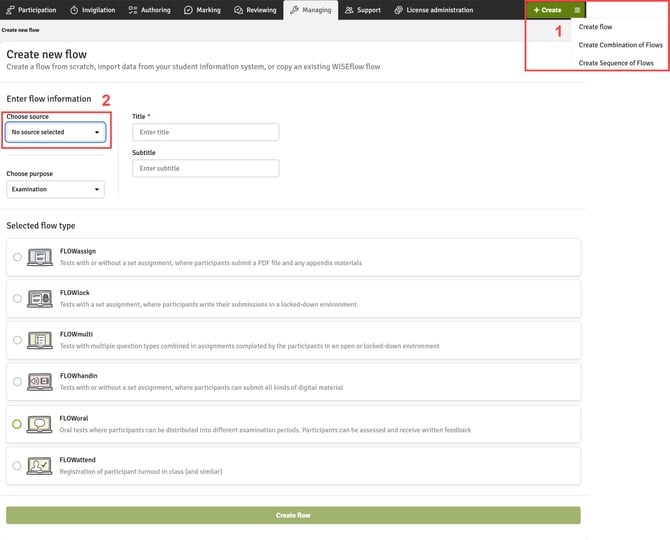
- The three-striped symbol next to the create button gives you the option to create a single flow or a Sequence of Flows or Combination of Flows.
- Choose the source: No source selected, WISEflow or, where applicable, your integration.
No source selected
You will create a flow from scratch.
![Create New Flow Page [contd]](https://help.wiseflow.net/hs-fs/hubfs/Managing%20and%20Inviglation/Introduction%20to%20the%20Manager%20and%20Invigilator%20Roles/Create%20New%20Flow%20Page%20%5Bcontd%5D.jpg?width=670&height=594&name=Create%20New%20Flow%20Page%20%5Bcontd%5D.jpg)
- Enter a title for the flow. This field is mandatory when creating a new flow.
- Add a subtitle.
- Select the purpose of the flow from: Examination, Coursework, Bachelor's Thesis or Master's Thesis. If you have selected Coursework, a checkbox appears allowing you to identify that you also wish to be the assessor on this flow. This means that you will be added as an assessor and whenever someone is enrolled on the flow (whether by the manager or by self-enrolment), you will automatically be allocated as their assessor.
Please note that this feature is only available with the paid-for Formative Assessment module
- Select the flow type that suits the needs of the exam. Note that the flow type cannot be changed after a flow has been created. Review the Key Concepts in WISEflow in the article about the different flow types.
- When you have entered a title and selected a flow type, the button Create flow can be selected.
WISEflow
You can search through a list of flows or enter a a flow ID number of a flow that you have already created on your licence.
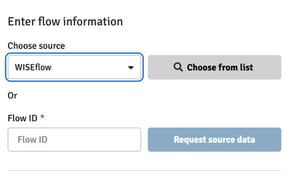
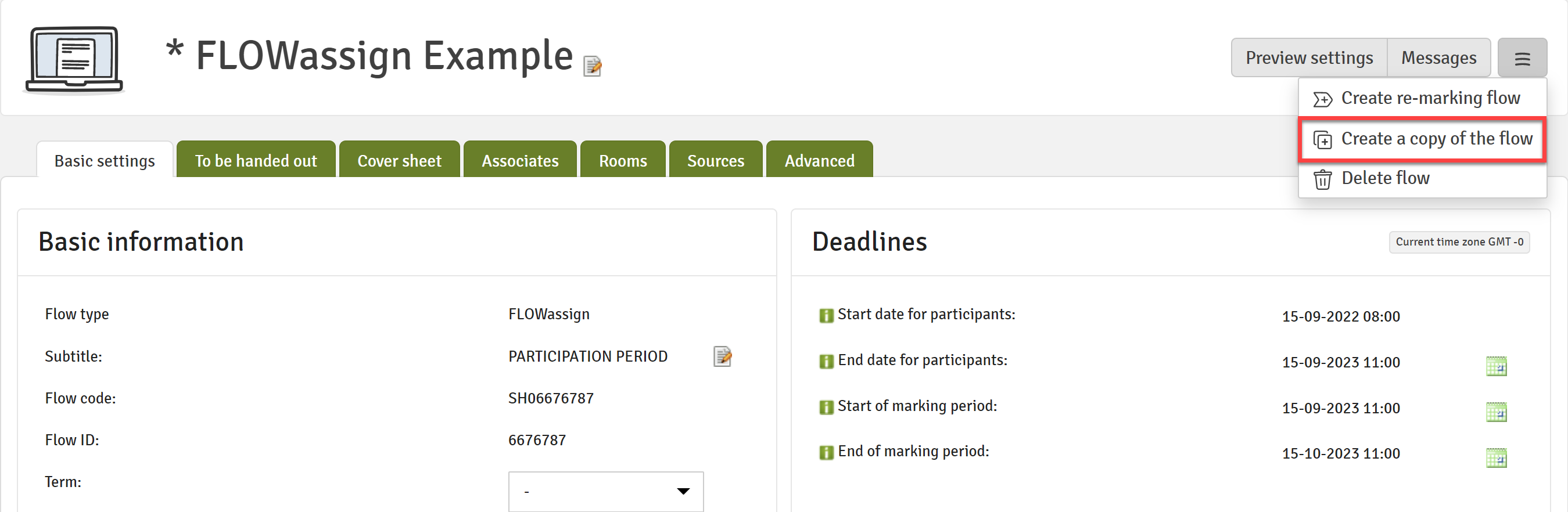
When you have chosen an existing flow, you will be able to use the information of the source flow and create a copy with amended existing information. Making a copy of a flow is also available directly from the header of a flow page.
You cannot change the flow type but you can change all other information from the source flow. See Copying a Flow.
SIS
Copying a Flow
In addition to creating a flow and using an existing flow in WISEflow as the source data, it is also possible for a manager to copy a flow directly from within the flow.
You can then select the information you wish to be copied to the flow:
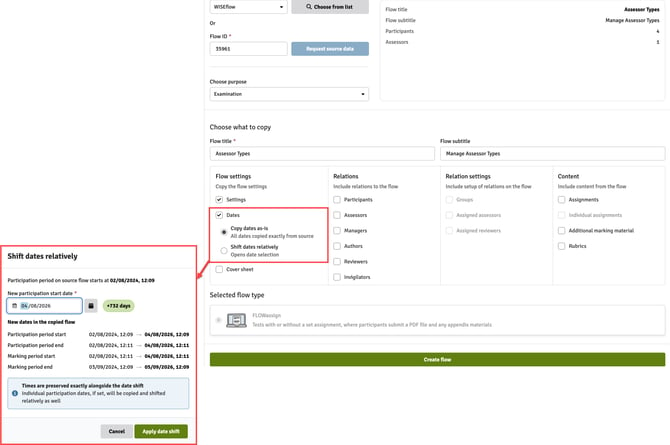
When selecting to copy dates to the new flow, you can choose to either copy them exactly, or to shift the dates relatively. By choosing the latter, you can enter a new participation start date and all further dates will shift by the same amount of time as the original.
Flow Settings
- Settings
- Dates (See above for choosing to copy dates and shift them in relative time)
- Start and End date for participants
- Start and End date of marking period
- Cover Sheet (FLOWassign & FLOWhandin only)
- An identical cover sheet will be created including any customised fields (FLOWassign & FLOWhandin)
- Passwords (FLOWlock and FLOWmulti only)
- The passwords from the original flow will be copied over when this is selected.
Relations
- Decide which user groups (Participants, Assessors, Managers, Authros, Reviewers, Invigilators) should be copied to the new flow
Relational Settings
- Groups
- Any groups of participants will be created including the group names
- Assigned Assessors
- The allocation of assessors to participants is copied
- Assigned Reviewers
- The allocation of reviewers to participants is copied
Content
- Assignments
- Assignments and any appendix material is copied
- Individual Assignments
- Additional assessment material