
This article has been updated to reflect the enhancements that will be available after Friday 4 September as part of the September 2026 release.
In this article:
- Accessing the Report
- Analysis overview
- Supporter Submission Lookup Tool
- Participant information
- Inspera Originality Credentials Needed for Integration
The percentage of text recognised from external sources is displayed, including where in the assignment it is found, allowing the assessor to determine the origin of the text and whether it has been cited correctly.
This feature is available for FLOWassign, FLOWlock and FLOWmulti. The availability of Inspera Originality with FLOWmulti is only on assignments that contain items with essay type questions.
For a full technical description of how the integration works, see the dedicated article Inspera Originality Similarity integration.
Accessing the Report
FLOWassign and FLOWlock
The text comparison (percentage) will be visible to external and internal assessors per default on the flow overview. The percentage appears in the participant list by each name and also in the assessor tool.
It is also visible to the reviewers:
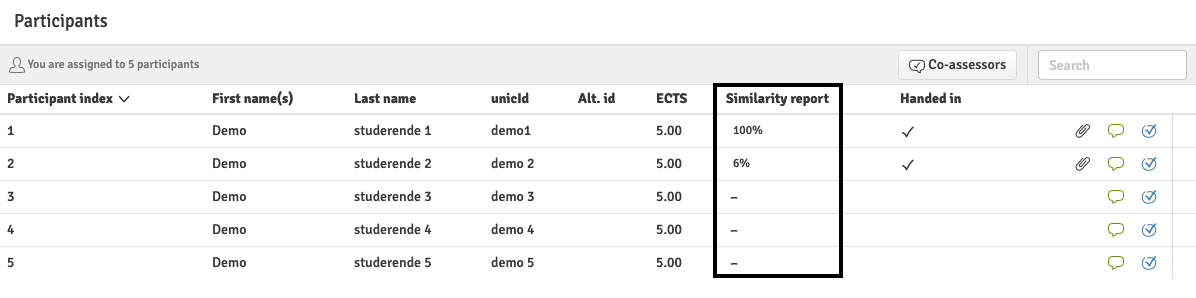
By clicking the percentage, a new page will open and the report is displayed. The report contains different information regarding the submitted paper.
FLOWmulti
For a FLOWmulti, each item containing an essay question is sent to the preferred similarity service set up on the flow. The percentage match is visible in the Item Overview on the right-hand pane of the marking tool.
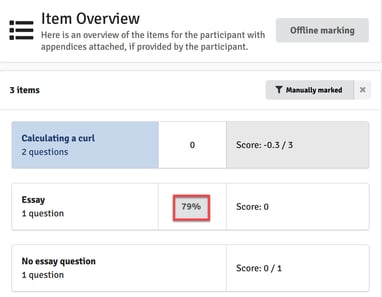
Clicking on the percentage match will take you to the similarity report.
Analysis overview
When opening the report, the first thing you are greeted by is the analysis overview.
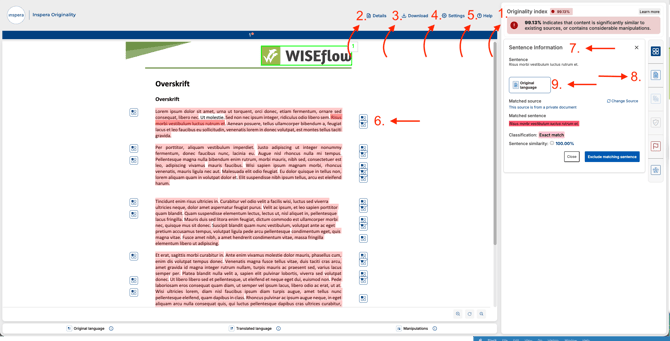
- Originality index: The overall similarity percentage for the submission, together with a short interpretation of what the score indicates (e.g. that the content is significantly similar to existing sources).
- Details: Opens the Submission details panel, showing metadata about the submission — title, Document ID, document language, AI Authorship analysis status, file size, word count, page count and view count. The Document ID can be used to cross-reference a submission when contacting Inspera Originality support.
- Download: Downloads a PDF copy of the report. Any exclusions that have been saved by an assessor will be reflected in the downloaded file.
- Settings: Gives access to configuration options for the report, grouped into three areas:
- Document Settings
- Privacy Settings
- Share Report
- Help: Opens links to Inspera Originality's help centre, where you can find articles that answer common questions about the report.
- Document content with highlighted matches: The submitted document is displayed with matched sentences highlighted. Each highlight has a marker next to it that corresponds to a card in the Matches list.
- Sentence Information: When a highlighted sentence is selected, this panel appears showing the matched sentence, the matched source (document, private document or web), the classification of the match (e.g. Exact match), the sentence similarity percentage and the option to exclude the matching sentence from the report.
- Side navigation: The icons on the far right let you switch between the different report views — summary, matches, excluded content, flags and source information.
- Language and Manipulations toggles: Switch the document view between the original language and a translated version, or display any detected manipulations in the document.
For more information on how to read the similarity report, read our article on Reading similarity reports.
Supporter Submission Lookup Tool
As a Supporter, you have access to a submission lookup tool (also called paper lookup), which can be used to find the owner of a handed-in assignment. This can be especially helpful when viewing the sources of a similarity report, where one of the sources is a previously handed in assignment from the same licence.
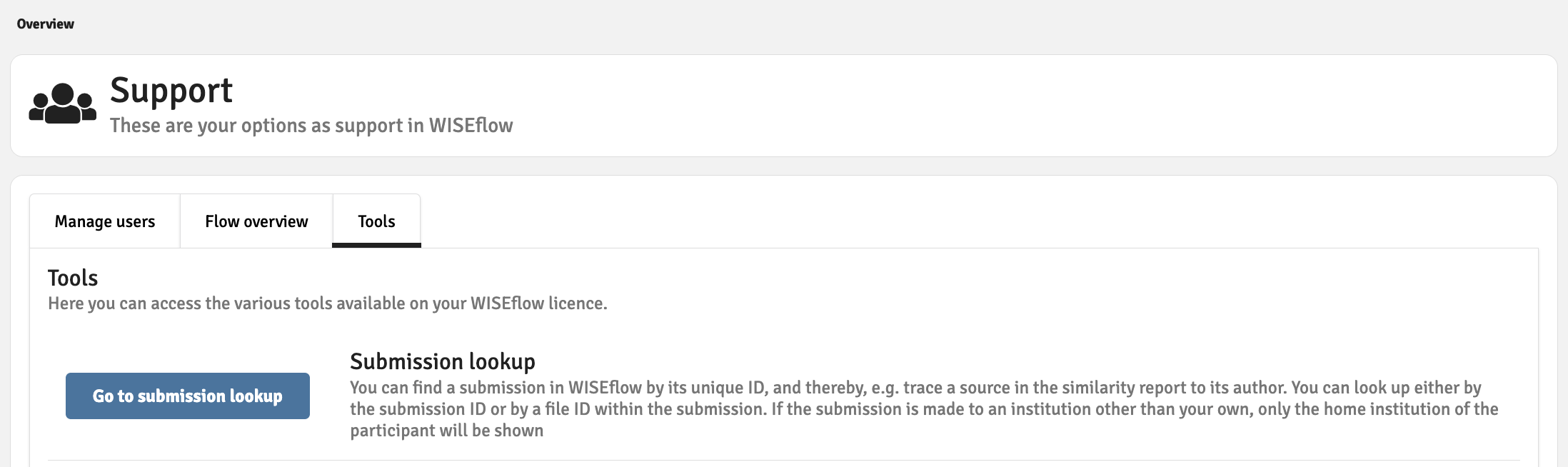
To use the Submission lookup tool, click the “Go to submission lookup” button, which will open a new page where you will be able to enter any paper ID you want and then all relevant information for this paper and its owner will be shown.
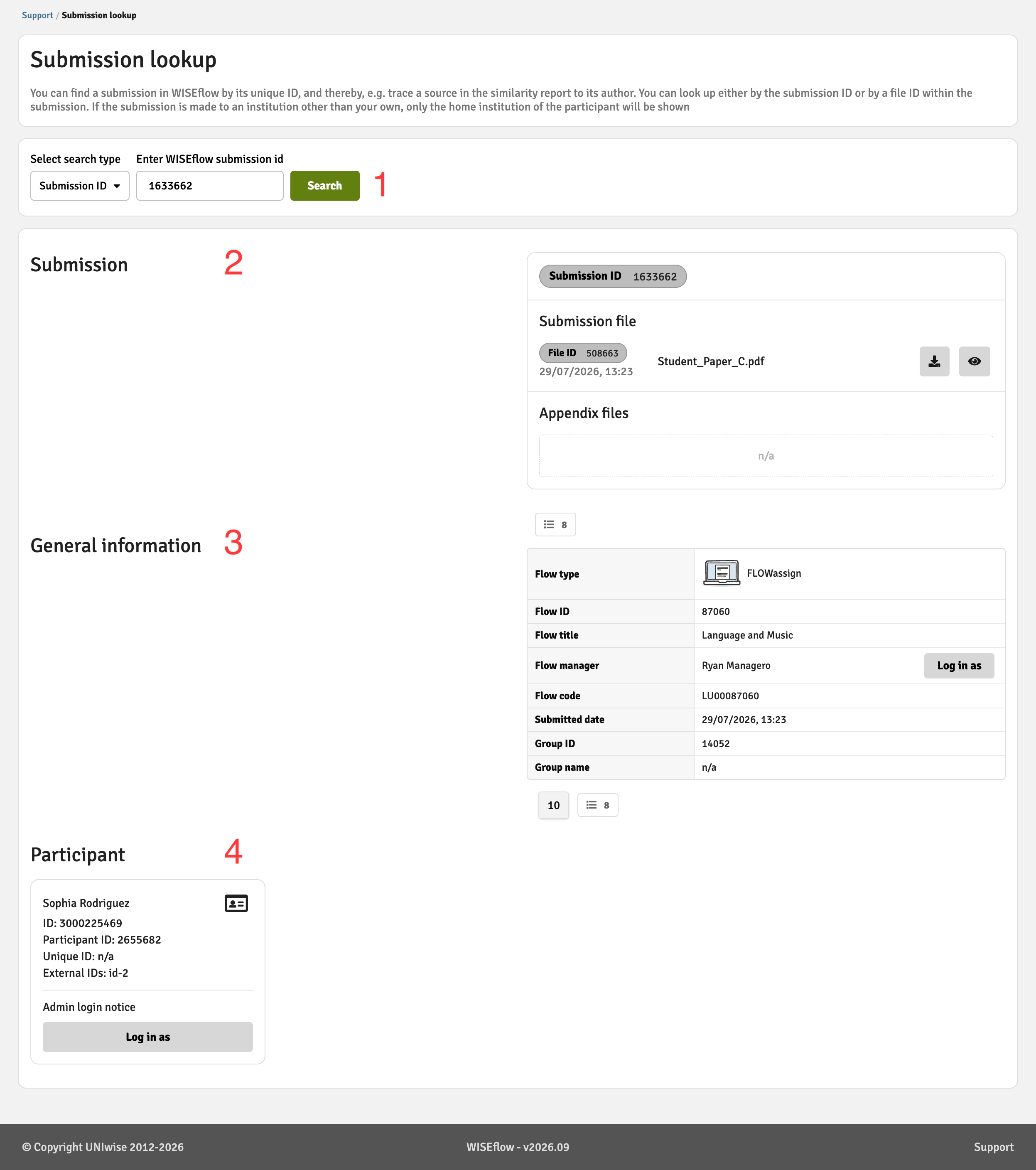
Once a paper ID has been entered, the following is available:
- Search: Available once a number is entered in the search field.
- Submission: The submitted material of the paper, the handed-in assignment and appendix files. Files can be previewed or downloaded.
- General information: Information regarding the flow where the paper was submitted, as well as group information if applicable. An option to log in as the manager on the flow is also available here.
- Participant(s): Information related to the participants who submitted the paper. This list may contain multiple participants if it is a group paper. An option to log in as the participants directly on the flow is also available here.
Find the guide Supporter: Looking up papers from a paper ID in our knowledge base.
Participant information
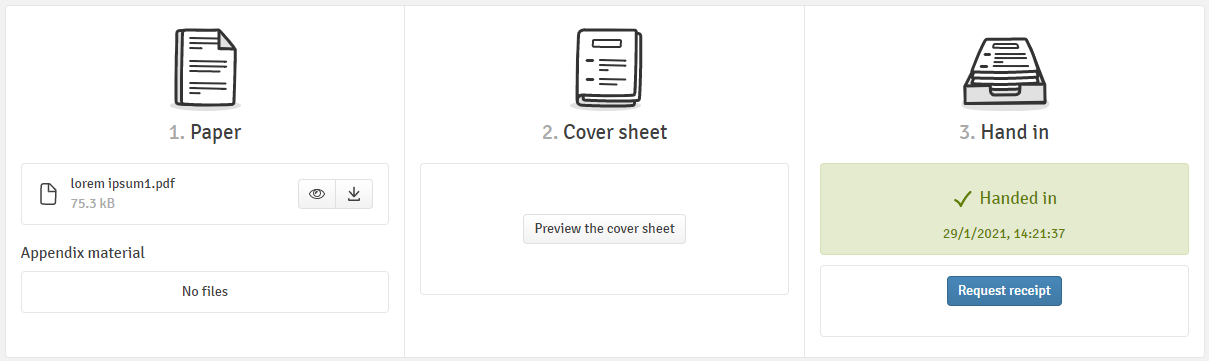
All papers handed in on FLOWassign and FLOWlock, as well as responses to essay-type items on FLOWmulti, will be sent to Inspera Originality. This happens automatically two hours after the individual participant period ends, unless the setting for text similarity has been disabled on the flow. The submissions will be tested to see if they contain passages of text that also appear elsewhere (internet, submissions by other participants, etc.).
Once Inspera Originality has completed its analysis, the result is reflected in WISEflow straight away.
Inspera Originality Credentials Needed for Integration
If you want an Inspera Originality integration with WISEflow, we need the following credentials from your Inspera Originality tenant:
- Client ID / API key: provided by Inspera.
- Client Secret / API key secret provided by Inspera.
- Tenant / API URL the endpoint associated with your Inspera Originality tenant (e.g.
https://<your-tenant>.inspera.com).
Note! To obtain your credentials, contact your Inspera Account Manager or your institution's Inspera administrator.
How to obtain the credentials:
- Log in to your Inspera Originality administration environment.
- Navigate to the Integrations (or API settings) section.
- Create a new integration / API scope and give it a recognisable name (e.g. "WISEflow").
- Generate a new key pair and give it a recognisable name (e.g. "WISEflow key").
- Copy the credentials and save them somewhere safe.
- Share the credentials and tenant URL with UNIwise. Please share them securely, for example, using a password manager or a similar service.