
In FLOWlock, you can annotate or comment on the assignment in the assignment viewer. Opening the assignment in a new tab will provide you with a full PDF reader which allows for annotations on the assignment.
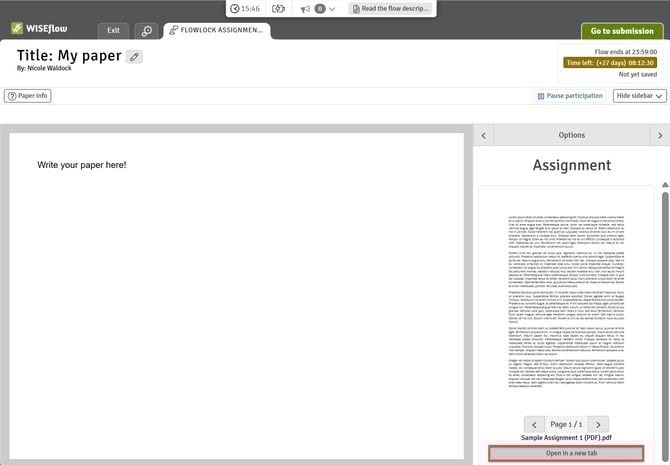
The assignment viewer cannot be used on iPads if the lockdown browser is enabled.
Any annotations and comments that have been made will be saved even if the internet connection is lost during the exam as these are saved on your computer. It will not be possible to access annotated assignments if you have to switch to a different computer / laptop during the exam.
Annotations will not be shown when viewing or opening the assignment solely in the main lockdown view where you can compose your answer.
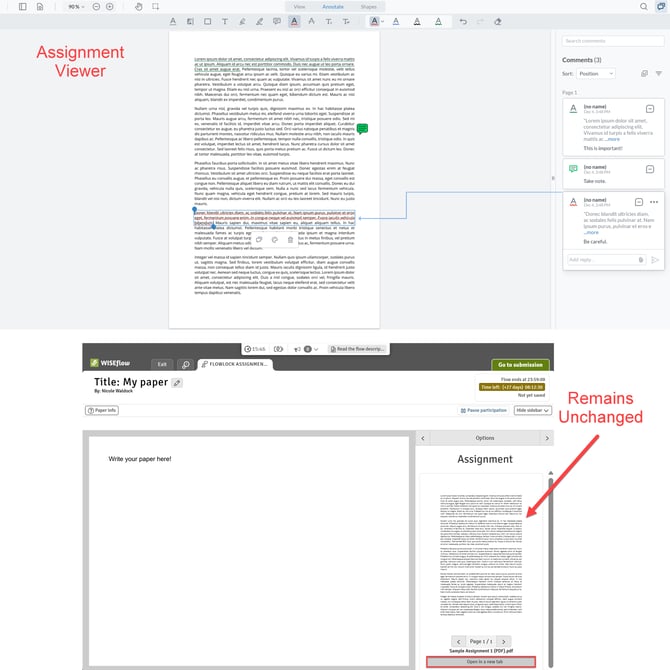
You have various options to annotate the assignment, make comments in the assignment viewer or, when in view mode, copy text from the assignment and paste it into the text editor in the lockdown browser:
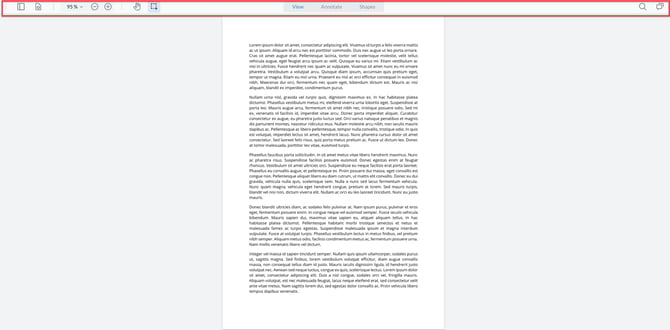
1. General Navigation
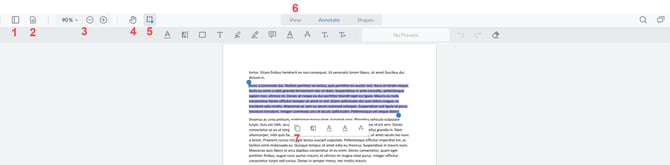
- If an assignment consists of several pages, a panel view lets you quickly jump to other pages.
- Change the page transition, orientation or layout.
- Zoom in or out in the assignment.
- Pan around a zoomed-in document/image.
- Select text in the assignment. Either click on the icon (No. 5) or switch to viewing mode (No. 6) to select the relevant text passage. You can then copy the text (shortcuts or via the icon No. 7) or quickly highlight, underline or strike through text).
2. Annotate and Comment
You can annotate the assignment with the following features:
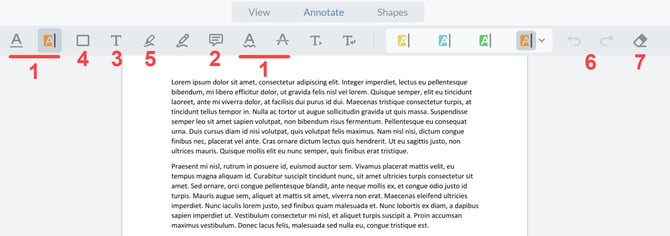
- Underline, highlight or strike through text.
- Include a note on the assignment.
- Include text on the assignment.
- Include rectangle.
- Include free hand highlights.
- Undo or redo changes.
- Erase annotations or comments.
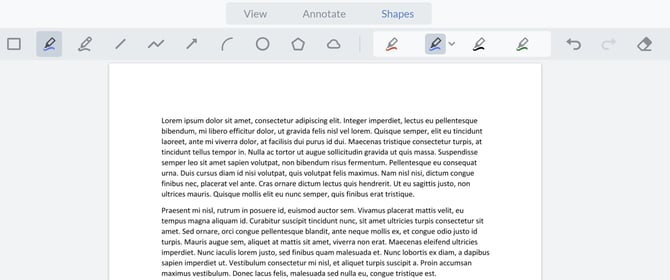
You can also include shapes on your assignment.
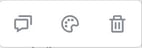
When you include an annotation or shape on your assignment, you then have the option to include a comment, change the style or delete the annotation again:
3. Search for Words and Through Comments
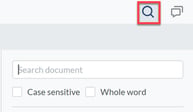
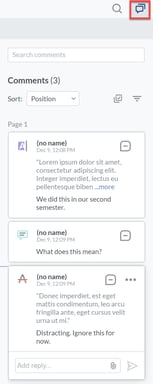
The icon for the assignment viewer is located in the top right-hand side of the screen as shown in the image below. It is different from the one provided by the lockdown browser which is located on the browser tab in the top right of the screen.
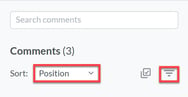
When searching through comments, you can also filter your comments by types (highlighted, underlined text, shapes, etc.) or by the colours of your annotations. You can also sort your comments by position, time, status, author, type or colour.
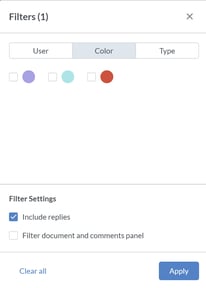 To get a better overview of all your comments, you can also drag the border to the left or, to make the view less prominent, to the right. Click on Search comments if you wish the search results to be hidden from view entirely. Please note that any filters or sorting you have previously set up will still be visible when you reopen the comment section.