
This article has been updated to reflect the enhancements that will be available after Friday 4 December as part of the December 2026 Release.
It is possible to form groups of one or several authors in the authoring tool. Every author can edit author groups where they have been added to as a collaborator or manage groups they have created themselves. You can access the author groups, you are part of, through the overview page.
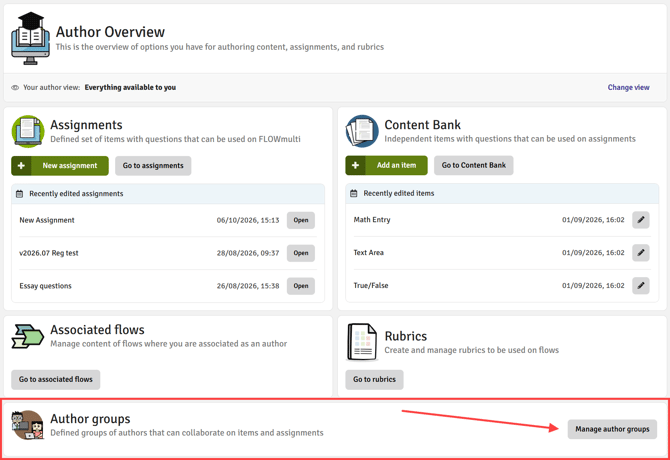
This will then bring you to an overview where you can manage the author groups. Here you can create a new group or edit existing groups.
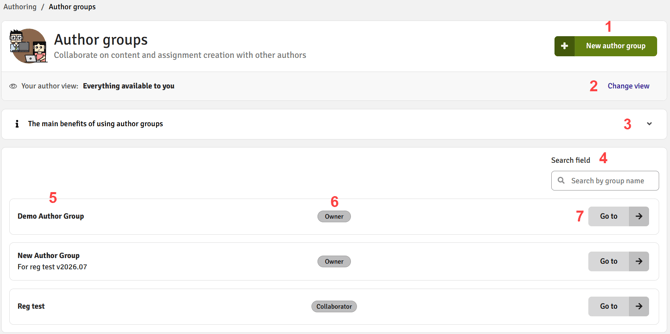
- Create a new author group. You will be the owner of this author group.
- The view will change depending if an author group has been selected or not.
- General information on the use and benefits of author groups. This can be collapse to hide it from view.
- Search through your user groups.
- Name of the author group.
- Overview if you are the owner of an author group or a collaborator, i.e. you have been added by someone else to this author group.
- Access assignments and content bank items that have been created in the author group and manage users within the author group.
In this article:
Create a New Author Group
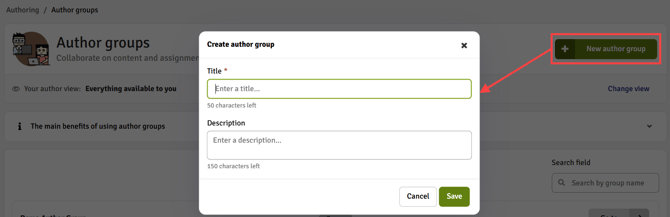
When you click Create new Author Group you will be presented with the above window, where you can add a title and description for your new author group. Once the information is filled in accordingly, you can click on Save to edit your new author group.
Author Group Overview
The overview of an author groups differs slightly depending on your access category (owner or collaborator) within a group.
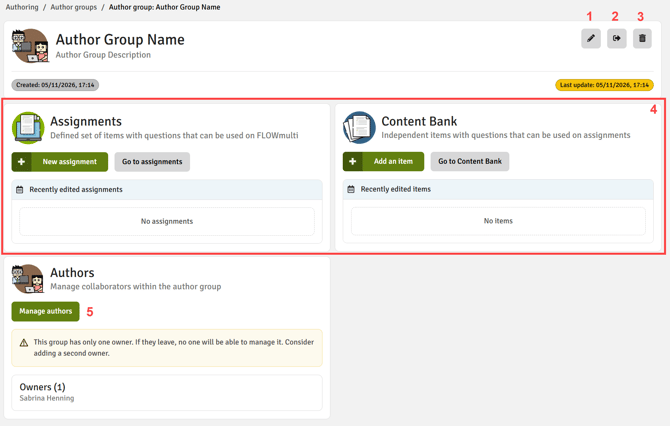
- Edit the name and description of the author group
- Leave the Author Group. If no other authors are part of the group, leaving the group will also delete the group. If there are other authors but you are the only owner, you will first have to allocate the owner privilege to another user before you are able to leave the group.
- Permanently delete an author group. This action cannot be undone.
Collaborators within an author group can only leave an author group but not edit or delete it.
- View assignments and content bank items where the author group has been added
- Manage the users within this author group. Owners can add, edit and delete co-authors within a group. Collaborators can only view all co-authors within the group.
Manage Users of an Author Group
Add Co-Authors
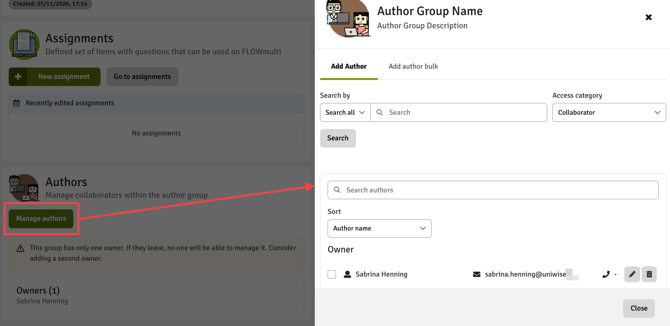
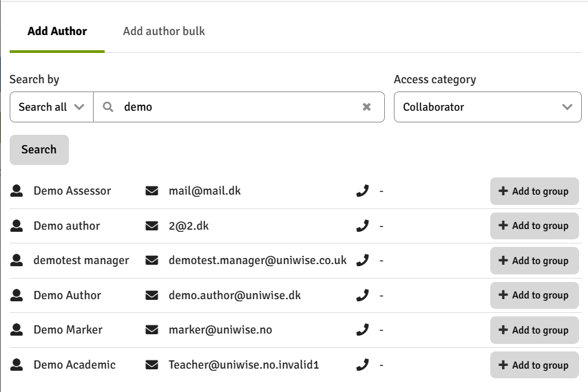
As an owner you can either add authors individually or in bulk. When adding authors individually, you can search for the user by name or email address. Decide which access they should have within the author group, either collaborator or make them another owner to have the same editing rights.
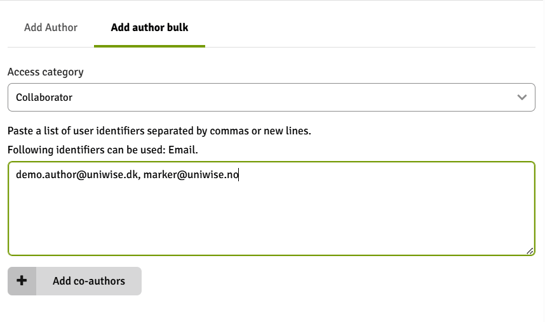
You can also add several authors in bulk. Add the email addresses, either separated by comma or in separate lines and then click on + Add co-authors.
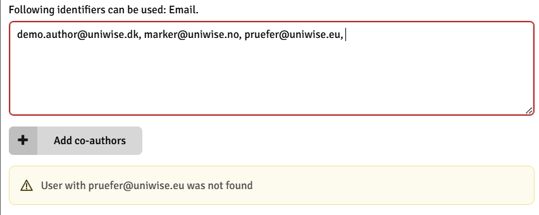
 It will be clearly displayed if a user with an email address does not exist or does not have the author role allocated. All users that are found will be added even if the list contains unknown users.
Edit Author Group Members
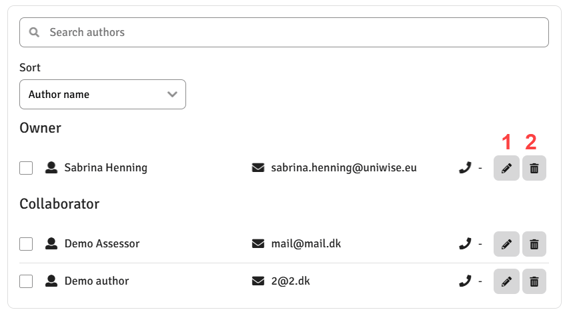
- Edit the access category for the user. Access categories are currently owner and collaborator.
- Delete a member or yourself from the author group. An author group has to have at least one owner, therefore an owner can only be deleted if another author group has the same access level.
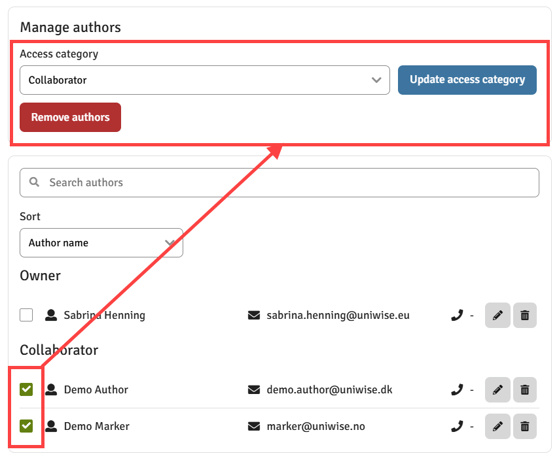
- It is possible remove or update the access category for several members in the author groups at once. Select the members to make changes.
Working within an Author Group View
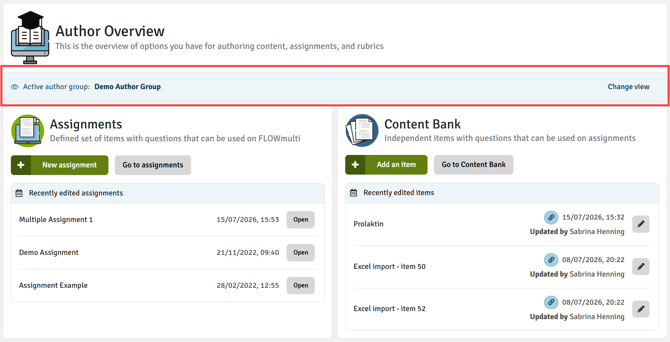
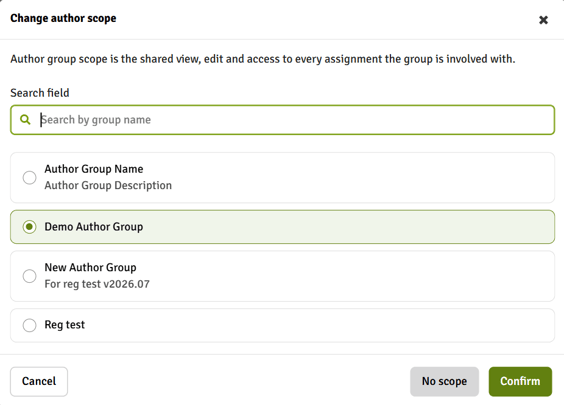
A banner will always indicate if work is done as part of an author group. From the banner, it is possible to easily switch to another group or remove the author group view. The banner is visible within the assignment and Content Bank view to easily identify in which view you are currently working.
Safeguarding Measures
Before Edit
Authors will be met with a warning message if they want to start editing an item that a co-author of the author group is currently editing.

If the author chooses to Continue, they risk that changes made by another author will be overwritten. Clicking on Back to assignment will bring the author back to the assignment. The warning message displays the name of the co-author that is currently editing the item.
Upon Save
Authors will see a warning message if they try to save a question that has been edited by another author in the meantime. Authors will generally receive the warning message to any changes (i.e. new questions have been added) made by another author to an item.

If the author checks the box and clicks on Confirm, changes made by another author will be overwritten. Clicking on Cancel will bring the author back to the editing mode of the question. If an author wants to see the changes made by another author, it is best to save their own changes and refresh the page.