This article has been updated to reflect the enhancements that will be available after Friday 4 September as part of the September 2026 Release.
Feedback is a vital part of the learning process for students. WISEflow offers the opportunity for assessors to provide annotations linked to specific points in a document, overall feedback on a student's submission, as well as common feedback for the cohort to whom the assessor has been allocated.
In this article:
Annotations
Annotations are an important part of the marking and feedback process in WISEFlow, allowing assessors to provide focused feedback linked to specific locations in a piece of submitted work.
The marking tool supports annotations on multiple file formats including PDF, JPG, PNG, PPT and can therefore be used for FLOWassign (including appendices) and, FLOWhandin. It works in a very similar way for FLOWlock and FLOWmulti meaning there is a variety of annotation options available for these types of flow.
Creating Annotations
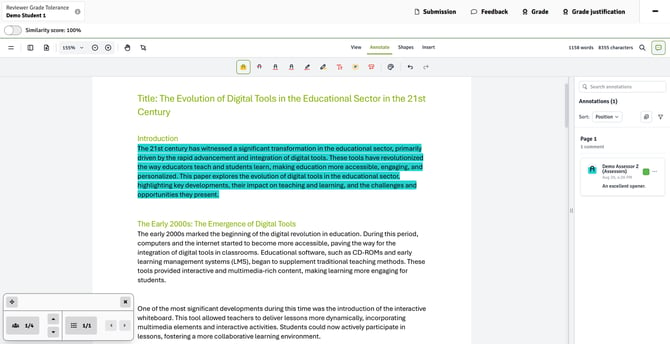
In FLOWmulti, there are two views: View and Annotate. In the View tab, you are presented with each item of the assignment in turn to which you have been allocated (item-based marking). Remember: you may not have been allocated to a whole assignment but only individual items(s). If you have been allocated to the whole assignment, you can add inline annotations to any of these items, even if they have been auto-scored. To add an annotation, select Annotate (a PDF version of the assignment); you can then use any of the tools listed below.
To access any interactive elements of the submission, such as an MP4 video or hyperlink, this must be done via the View tab. It is not possible to do this using the Annotate tab as this is essentially a non-interactive PDF.
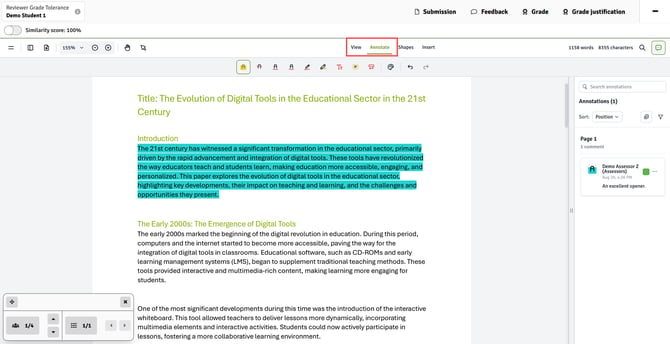
The new marking tool offers three different inline annotation options: an annotate tool, a shape tool and an insert tool.
The Annotate Tool
 icon to select text first, you can also choose to copy the text or link to a URL. Additional functions include undo, redo and erase.
The Shapes Tool
icon to select text first, you can also choose to copy the text or link to a URL. Additional functions include undo, redo and erase.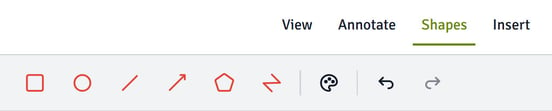
The Insert Tool
icon to select text first, you can also choose to copy the text or link to a URL. Additional functions include undo, redo.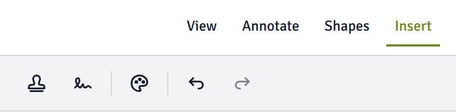
The Annotation Editor Window
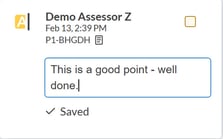
Within each new annotation window, comments can be added via the text box. Click on the coloured box in the top right corner to change with whom the comment is to be shared: participant, co-assessor, private or all. Your comment will be save automatically.
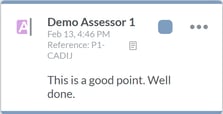 Once saved, the three dot icon
  can be used to edit or delete the annotation.
At the top of the annotations window there is a search box that allows you to search the annotations for text. It is also possible to sort the annotations by position, created date, modified date, sharing state, author, type or colour.
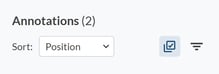
The three-strip icon  can be used to filter the annotations using any of the annotations' attributes, such as author, sharing state, annotation type or colour.
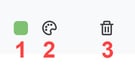
The double  icon can be used select multiple annotations and the All icon
  to select all annotations. This enables bulk action to be performed: (1) update the sharing status, (2) update the format or (3) delete the selected annotations.
Reviewer Moderating Annotations
Once a reviewer has been given Moderator level status, they are able to copy and adjust any annotation provided by an assessor.
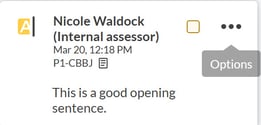 To copy an assessor's annotation, click on the ellipses (3 dots) and select copy. The annotation will be duplicated with the reviewer's name instead of the assessor (unless anonymised).
The annotation text can now be adjusted.
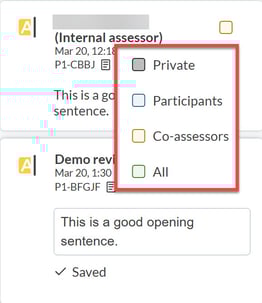
It is also possible for the reviewer to change the status of the original (or any) annotation.
This means that if an assessor's annotation needs adjusting or re-writing, the reviewer can copy the annotation, make the relevant changes, and change the status of the original annotation so that it is not visible to the participant.
The sharing settings are described below.
Sharing Settings
Sharing Individual Annotations
There are four possible options for sharing annotations:
- Private: Comments and annotations are visible only to the assessor (This is unless a reviewer has been given the privilege to access all assessment information which includes all comments made by an assessor, even if they are set to private).
- Share with participant: Comments and annotations are visible to the assessor and the participant (upon the release of grades and feedback) only.
- Share with co-assessor: Comments and annotations are visible to the assessor and any co-assessors that are also assigned to the same participant.
- Share with all: Comments and annotations are available to the assessor, and co-assessors that are also assigned to the same participant and the participant (upon the release of grades and feedback).
These options can be configured per annotation in order to offer maximum flexibility to assessors. To change the setting on a single annotation, click on the coloured box in the top right corner to change with whom the comment is to be shared: participant, co-assessor, private or all.
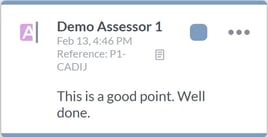
The default WISEflow behaviour is that comments are private unless the assessor decides to share them. However, it is possible to configure this at an individual licence level or at the flow level to make the default behaviour be any of the four listed options.
For example, if the default behaviour is that annotations are shared with all, assessors would need to deselect the groups with whom they did not want to share the annotation. Please see the article on Licence Settings (licence level) or Managing Assessors, Reviewers and Marking Settings (flow level) for more information.
It is possible for the reviewer to change the status of the original (or any) annotation.
This means that if an assessor's annotation needs adjusting or re-writing, the reviewer can copy the annotation, make the relevant changes, and change the status of the original annotation so that it is not visible to the participant (see above).
Submission Feedback
Alongside the annotation tools which allow assessors to make comments linked to a specific position in the submission, WISEflow also makes it possible to provide general comments and feedback at both the submission level as well as to the cohort an assessor has been allocated to. The latter can be useful if assessors, for example, start to notice the same errors appearing in several submissions.
Submission feedback can be added by clicking on the feedback icon  and opening the submission feedback window from the right-hand navigation pane in the marking tool.
Add your text to the text box and format. Select your preferred sharing option i.e. with participants, co-assessors or any combination thereof. Add a file if you wish and click Submit. Any previously entered feedback is listed below in the same window. The list of feedback can also be filtered and sorted.
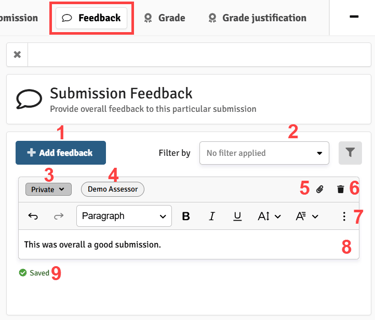
- Add new feedback
- Filter and sort the list of feedback comments
- View or change the sharing status for the feedback
- Identifies the assessor and, by hovering over the name, when the comment was last edited
- Add additional files to the feedback
- Delete the feedback
- Available formatting options for the feedback text
- Edit the feedback text. Clicking on the text box will open the feedback comment for further editing.
- Indication if feedback is edited or saved
Reviewer Moderating Submission Feedback
Once a reviewer has been given Moderator level status, they are able to copy and adjust any comment of submission feedback provided by an assessor.
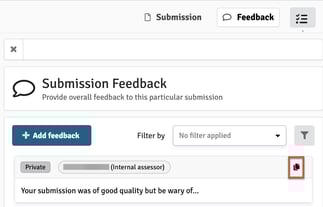
To copy an assessor's submission feedback comment, click on the copy icon. The comment will be duplicated with the reviewer's name instead of the assessor (unless anonymised).
The comment text can now be adjusted.
.jpg?width=322&height=262&name=Reviewer%20-%20Change%20Sharing%20Status%20(Submission%20Feedback).jpg) It is also possible for the reviewer to change the status of the original (or any) submission feedback comment.
It is also possible for the reviewer to change the status of the original (or any) submission feedback comment.
This means that if an assessor's submission feedback comment needs adjusting or re-writing, the reviewer can copy the comment, make the relevant changes, and change the status of the original comment so that it is not visible to the participant.
The sharing settings are described above.
Common Feedback
Common feedback can be added by clicking on the speech bubble icon  and opening the common feedback window from the left-hand navigation pane in the marking tool.
Add your text to the text box and format. Select your preferred sharing option i.e. with participants, co-assessors or any combination thereof (more information on sharing settings in the annotations article). Add a file if you wish and submit. Any previously entered feedback is listed below in the same window. The list of feedback can also be filtered and sorted.
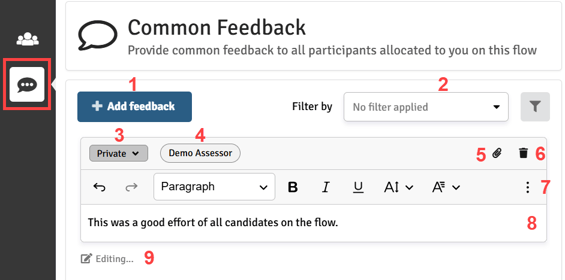
- Add new feedback
- Filter and sort the list of feedback comments
- View or change the sharing status for the feedback
- Identifies the assessor and, by hovering over the name, when the comment was last edited
- Add additional files to the feedback
- Delete the feedback
- Available formatting options for the feedback text
- Edit the feedback text. Clicking on the text box will open the feedback comment for further editing.
- Indication if feedback is edited or saved
Reviewer Moderating Common Feedback
Once a reviewer has been given Moderator level status, they are able to copy and adjust any comment of common feedback provided by an assessor.
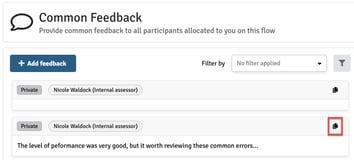
To copy an assessor's common feedback comment, click on the copy icon. The comment will be duplicated with the reviewer's name instead of the assessor (unless anonymised).
The comment text can now be adjusted.
.jpg?width=351&height=227&name=Reviewer%20-%20Change%20Sharing%20Status%20(Common%20Feedback).jpg)
It is also possible for the reviewer to change the status of the original (or any) common feedback comment.
This means that if an assessor's comment needs adjusting or re-writing, the reviewer can copy the comment, make the relevant changes, and change the status of the original annotation so that it is not visible to the participant.
The sharing settings are described above.
Download Feedback Package
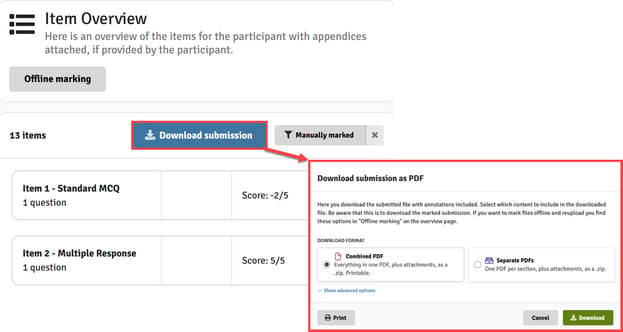
Assessors and Reviewers can download a complete package of feedback that includes the submission, common feedback comments, submission feedback comments, annotations and rubrics in PDF format. Simply select either combined or separate PDFs.