
This login method is only available upon request for an additional charge. Please reach out to UNIwise if you wish to learn more about the module.
There are four potential ways in which a participant can be set up to log into WISEflow. This will depend on the method chosen by the hosting institution and more details can be found here.
Direct flow-based login can benefit any institution wishing to avoid maintaining customer details within WISEflow, particularly if the engagement with the platform may be short term and for one assessment only for example, an entrance exam.
This login method is available to users who only have been allocated the participant role.
To select this method, the manager must enable the setting via All participation settings and select Enable Direct Flow Based Login. Once enabled, click Setup direct flow based login.
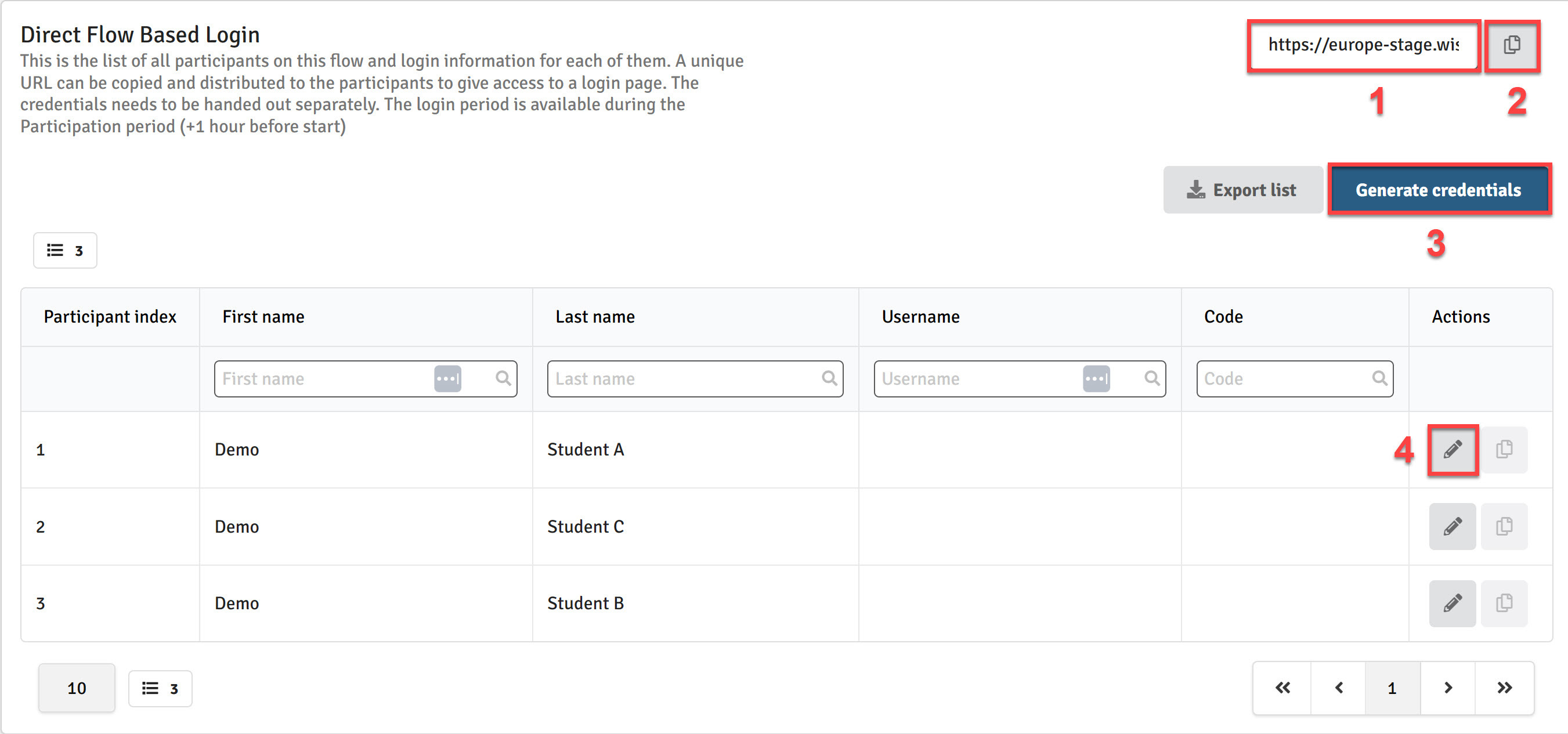
- Unique URL for the flow: providing this to participants enables direct access to the designated flow following login. Participants can only access the flow during the designated participation period. If late submissions are enabled for the flow, this time will also be included in the participation period.
- Copy the flow URL
- Generate credentials: generate unique login credentials for all participants (see below)
- Generate individual credentials: generate a unique login credential for an individual (see below)
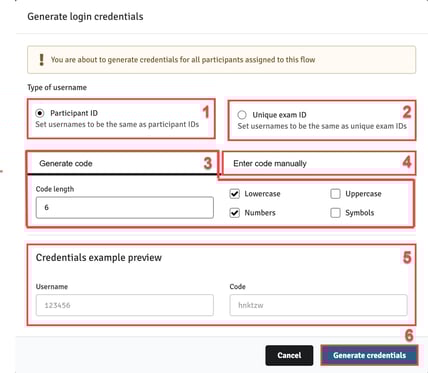
- Participant ID: Set the participant username to be the same as the participant ID
- Unique exam ID: Set the participant username to be the same as the unique exam ID
- Generate code: Set WISEflow to automatically generate the code by entering the desired character length of the code and selecting any combination of four criteria that can be used: lowercase, uppercase, numbers and symbols
- Enter code manually: Select this to manually enter a code; when generating credentials for the whole cohort, this code will be common to all participants
- Credentials example preview: Displays an example following the selection of code criteria
- Generate credentials: Click to generate credentials and populate the table
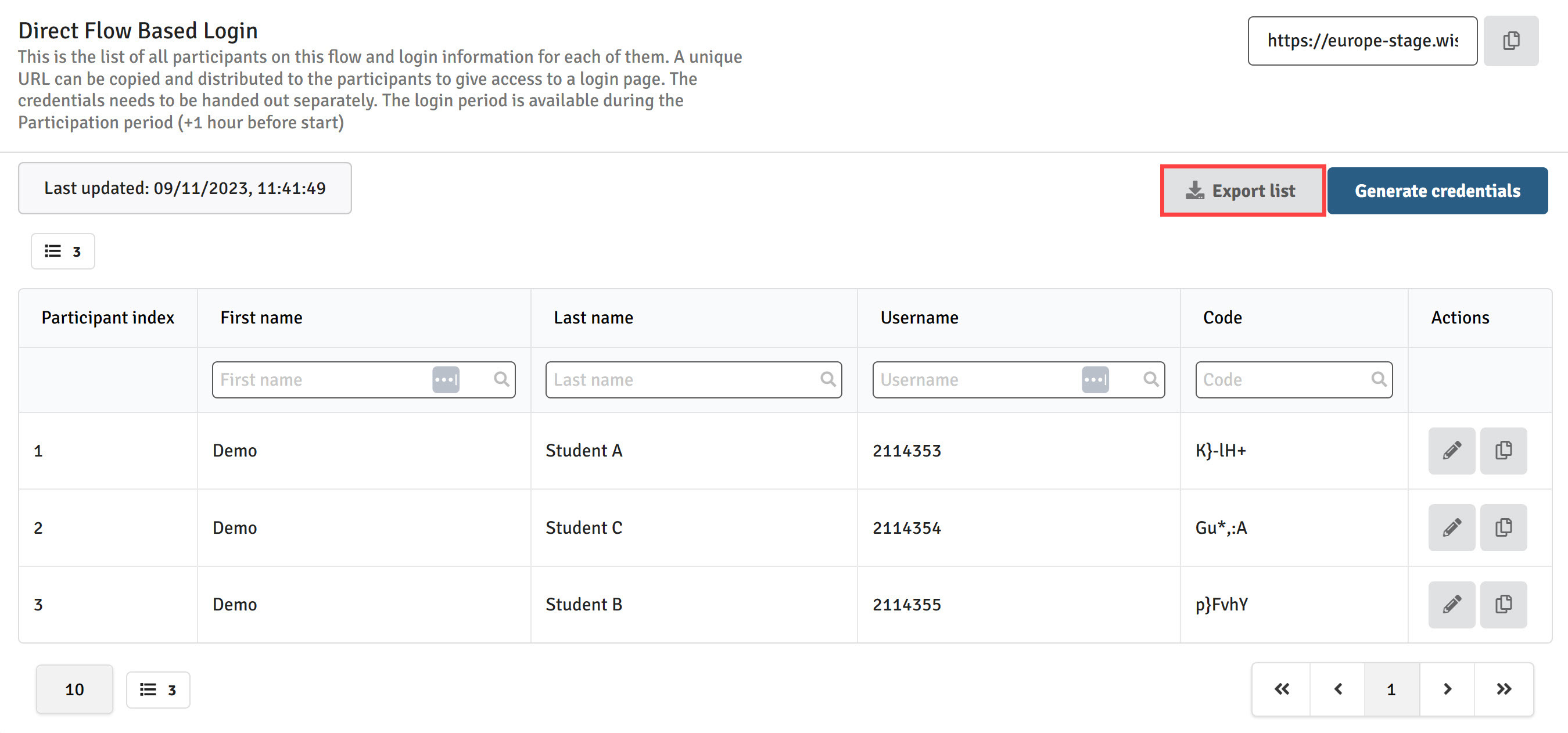
Once the table has been populated, click on Export list to export the table into a CSV making it easy to use in communications to participants.
Participants can log in to the flow using the unique URL together with their individual username and code. If a participant enters incorrect login credentials 5 times in a row, their login will be blocked and their code will be removed. In this case, a new code must be generated and shared with the participant before they can try their log in attempt again. Logins are not possible before or after the participation period, including any time allowed for late submissions.