
AI Assisted Feedback helps assessors write clear, consistent feedback faster. Once an assessor has finalised a grade, the AI Feedback Assistant can draft written feedback based on the participant's submission and the flow's marking guidance.
The assistant explains the reasons for the grade the assessor has already given. It never grades, suggests a grade or predicts a score. The assessor reviews and edits every draft and remains the author of the final feedback.
AI Assisted Feedback is an optional add-on module. It is switched off by default and is enabled per flow by a manager.
Before you start
- Add-on module: your institution must have the AI Assisted Feedback module. To add it, contact your Customer Success Manager or the UNIwise Growth Team.
- Role: you must be a manager on the flow to enable the assistant.
- Marking guidance: the flow must have marking guidance added before the assistant can be used. We recommend adding it before you enable the assistant.
- Grading stays with the assessor. The assistant does not grade, suggest grades or predict scores, and cannot be used before or during grading.
- Every draft is reviewed. Participants never receive AI-drafted feedback that an assessor has not reviewed and approved.
- Participants never interact with the AI. They only see a notice that AI assistance was available to the assessor.
- Your data stays yours. The assistant only works within the assessment workflow where it is used. Customer data is not given to model vendors to train their AI.
- Your institution decides. Each institution chooses whether to use AI Assisted Feedback under its own policy.
Add Marking Guidance
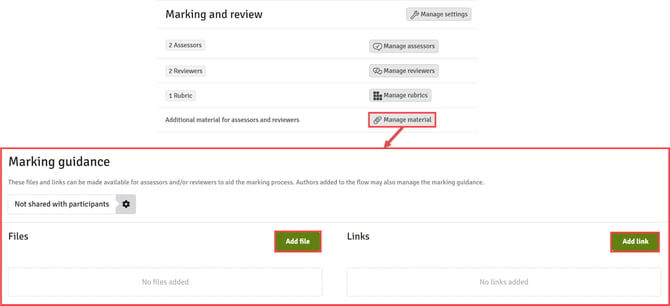
- Open the flow as a manager
- Go to the Marking and Review section, locate the Additional material for assessors and reviewers and click on Manage Material
- Add marking guidance as a file or a link
Enable the AI Feedback Assistant

- Open the flow as a manager.
- Go to Manage settings.
- Enable the AI Feedback Assistant setting.
Assessors on the flow can now request a feedback draft once they have finalised a grade. Participants will see a notice that AI assistance was available to the assessor.
If the flow has no marking guidance, assessors cannot use the assistant. Add marking guidance to the flow first.