This article has been updated to reflect the enhancements that will be available after Friday 4 September as part of the September 2026 Release.
Feedback that has been shared with you by an assessor will be visible as an annotated paper on the flow page. The feedback page shows all annotations, comments, and completed rubrics that have been shared with you by the marker.
Feedback View
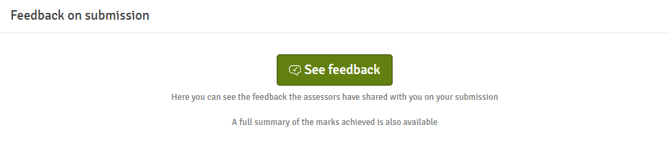
On entering the flow page, click the See Feedback button to access feedback on your work.
FLOWassign/FLOWhandin/FLOWLock
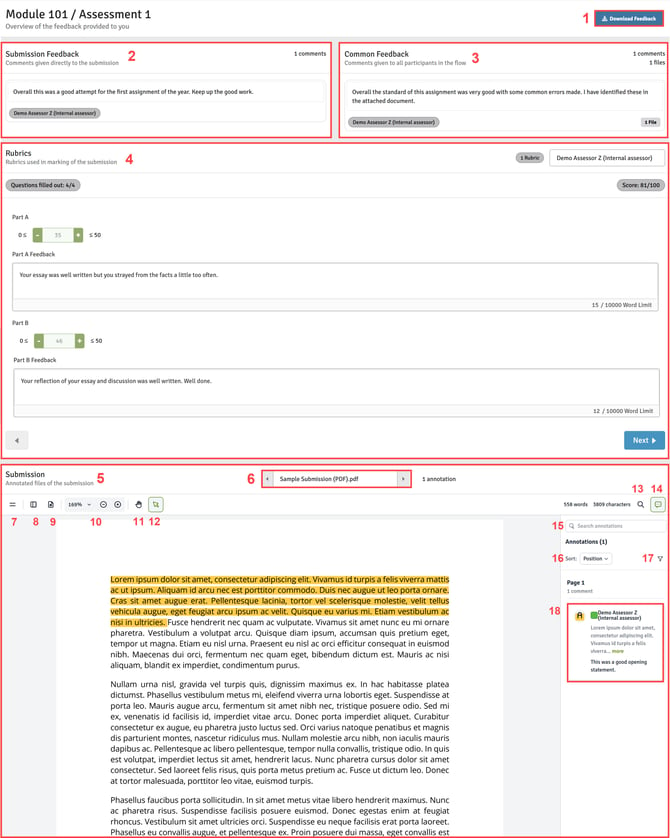
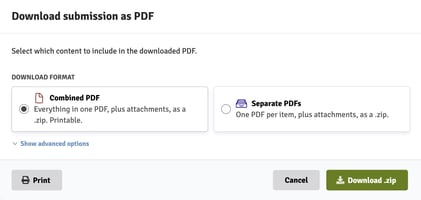
- Download feedback: Download your submission complete with feedback either as one file (with attachments in a .zip file) or into separate PDFs/files.
- Submission Feedback: Your assessor may write general comments on your whole submission and it is possible for them to also attach a file.
- Common feedback: Your assessor may write feedback for all participants whose work they have marked and it is possible for them to also attach a file.
- Rubrics: If a rubric has been used to mark your work, this may be shared with you. Rubrics look different depending on the style and content. Depending on the flow setting, you may also see the name of your assessor.
- Submission: This final section displays your marked work, including any annotations shared with you by your assessor.
- File navigation: Allows you to navigate between multiple files that were submitted for marking.
- Document menu: Access options for print settings, taking a screenshot, export options and full screen.
- Open panel: Open a page navigation panel on the left-hand side of your screen making it easier to navigate to specific pages within the document.
- View controls: View controls for page transition, page orientation and page layout (including full screen).
- Zoom: Controls to zoom in and out.
- Pan: Pan around a document when zoomed in.
- Toggle pointer mode: Return to pointer mode.
- Search: Search for words or phrases within the document.
- Annotations: Switch to annotation view.
- Search annotations: Search annotations for words or phrases.
- Sort annotations: Sort the listed annotations by position, created date, modified date, sharing state, co-assessor, type or colour.
- Filter annotations: Filter the list of annotations by co-assessor, sharing state, colour or type.
- Annotation: Displays the annotation comment and highlights to which part of the document it refers.
FLOWmulti
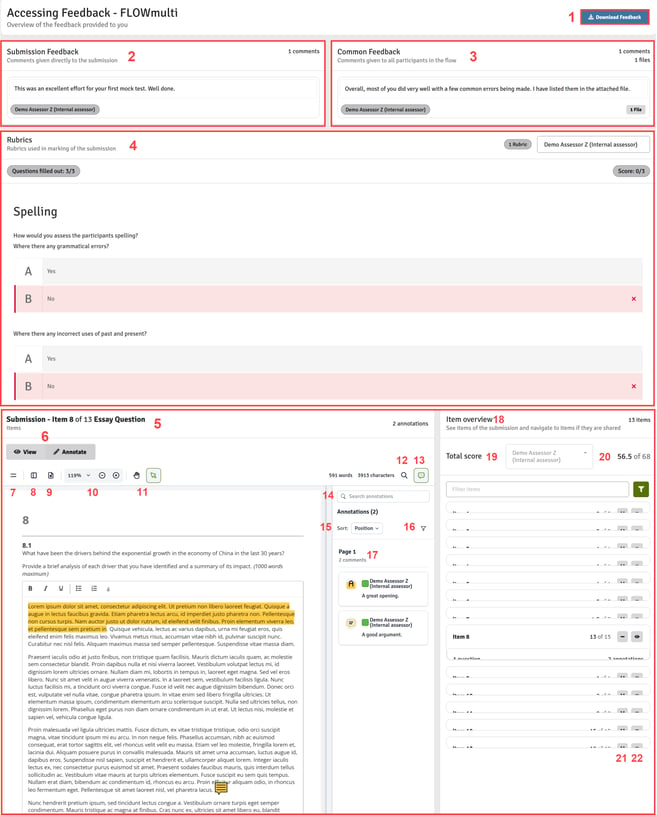
- Download feedback: Download your submission complete with feedback either as one file (with attachments in a .zip file) or into separate PDFs/files.
- Submission Feedback: Your assessor(s) may write general comments on your whole submission or the items to which they were allocated for marking. It is also possible for them to attach a file.
- Common feedback: Your assessor(s) may write feedback for all participants whose work they have marked and it is possible for them to also attach a file.
- Rubrics: If a rubric has been used to mark your work, this may be shared with you. Rubrics look different depending on the style and content. Depending on the flow setting, you may also see the name of your assessor.
- Submission Items: Displayed in this section will be the item being viewed and only if it has been designated by your institution that you can view your submission. If you can, the first item will show first, until you select the
 icon next to another item.
 - View/Annotate: Toggle between these two views. Annotate enables you to view any annotations provided by the assessor. When in the Annotate view, the following command become available to you:
- Document menu: Access options for print settings, taking a screenshot, export options and full screen.
- Open panel: Open a page navigation panel on the left-hand side of your screen making it easier to navigate to specific pages within the document.
- View controls: View controls for page transition, page orientation and page layout (including full screen).
- Zoom: Controls to zoom in and out.
- Pan & Pointer: Toggle between being able to pan around a document when zoomed in, and returning to the pointer cursor mode.
- Search: Search for words or phrases within the document.
- Annotations: Switch to annotation view.
- Search annotations: Search annotations for words or phrases.
- Sort annotations: Sort the listed annotations by position, created date, modified date, sharing state, co-assessor, type or colour.
- Filter annotations: Filter the list of annotations by co-assessor, sharing state, colour or type.
- Annotation: Displays the annotation comment and highlights to which part of the document it refers.
- Item Overview: Displays the assignment's items and, if enabled on the flow, the items scores.
- Total Score: Displays the total score
- Assessor Score: Select an assessor to see the items and total score awarded by them.
- Expand Item: Expand the item to see the number of annotations provided.
- View Item: View the selected item which opens in the main pane.
Different information will be displayed depending on how the flow has been set up.
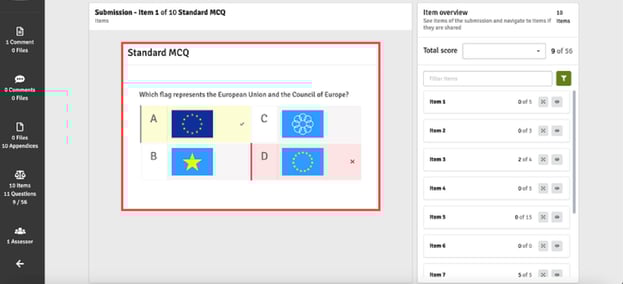
You may see the automatic validation of auto-scored questions after submission:
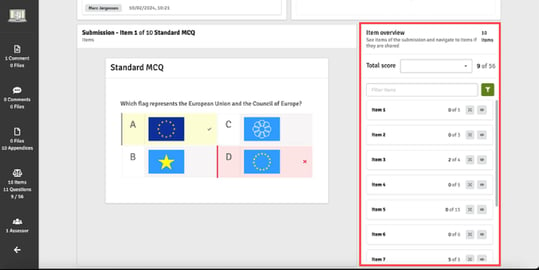
You may see your achieved marks against each item after the marking period has ended:
If your assessor(s) has shared inline annotations with you on auto-scored questions, you will see tabs offering you View or Annotate options. Click Annotate to view the annotations.
%20+%20auto-validation%20+%20achieved%20marks.jpg?width=539&height=272&name=Annotations%20(FLOWmulti)%20+%20auto-validation%20+%20achieved%20marks.jpg)
If enabled on the flow, you will also be able to view your performance on any auto-scored questions by clicking on the  icon next to your paper.