
This article has been updated to reflect the enhancements that will be available after Friday 23 October as part of the October 2026 Release.
It is possible to grant access to a WISEflow user's profile using an access link. Access links enable a user to bypass the normal authentication method used to access your institution's/organisation's WISEflow licence.
To use this feature, the access token module must first be enabled on your institution's/organisation's WISEflow licence. Please contact the UNIwise Support Team for assistance if required.
How to Create an Access Link for a User
Users with the extended supporter role can create an access link for a user.
Access the Support tab and search for the relevant user on the Manage users sub tab.
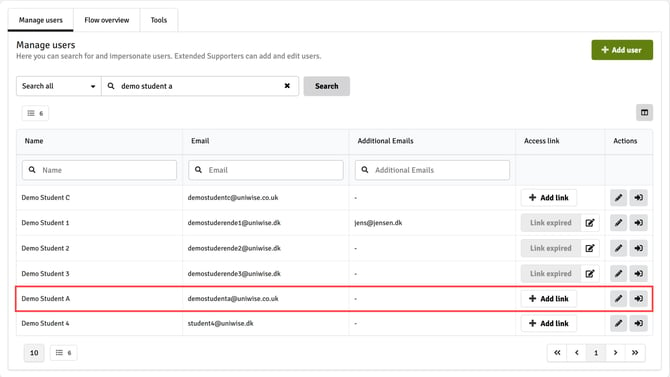
Once the relevant user has been located via searching, click on the Add link button next to the relevant entry in the table.
-
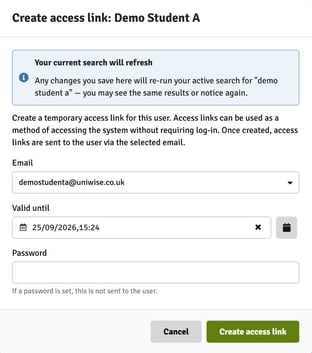
Create the access link by selecting the desired email address from the drop-down list (if the user has more than one). Access links require a valid and activated email address to exist in the system for a user.
-
Select the expiry date and time of the link using the calendar icon.
- (Optional) Enter a password. If a password is entered, this is not sent to the user.
- Click Create access link.
The password is designed be used as an extra security measure. Therefore, the password is not sent from WISEflow to the recipient of the Access Link and the user must be informed of the password outside of the system.
Once created, an email notification is automatically sent to the recipient which contains the Access Link.
As a security measure, access links cannot have an expiry date longer that 90 days.
Editing or Deleting an Access Link
Once an access link has been created, it can be accessed by searching for the relevant user (described above).

The link can be copied and shared with the user directly by clicking on Copy link. The link can also be edited by clicking on the pencil icon and, for example, amending the expiry date or deleting by clicking on Delete access link.
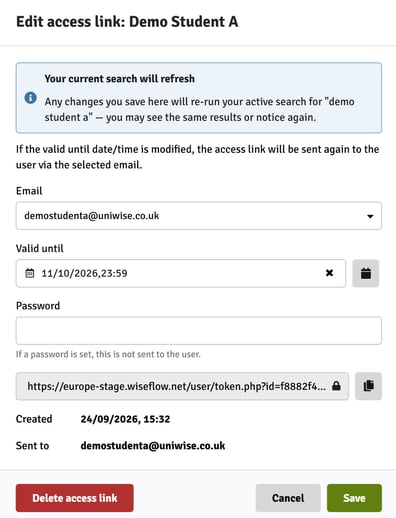
A new link will be generated when an existing access token has been edited. The previous access token will no longer be valid and the new link will be sent automatically to the user via email.